 .Click
かんたんなリズム譜をつくってみよう Create a Simple Rhythm Score Crea una partitura de ritmo sencilla
テンポを設定する
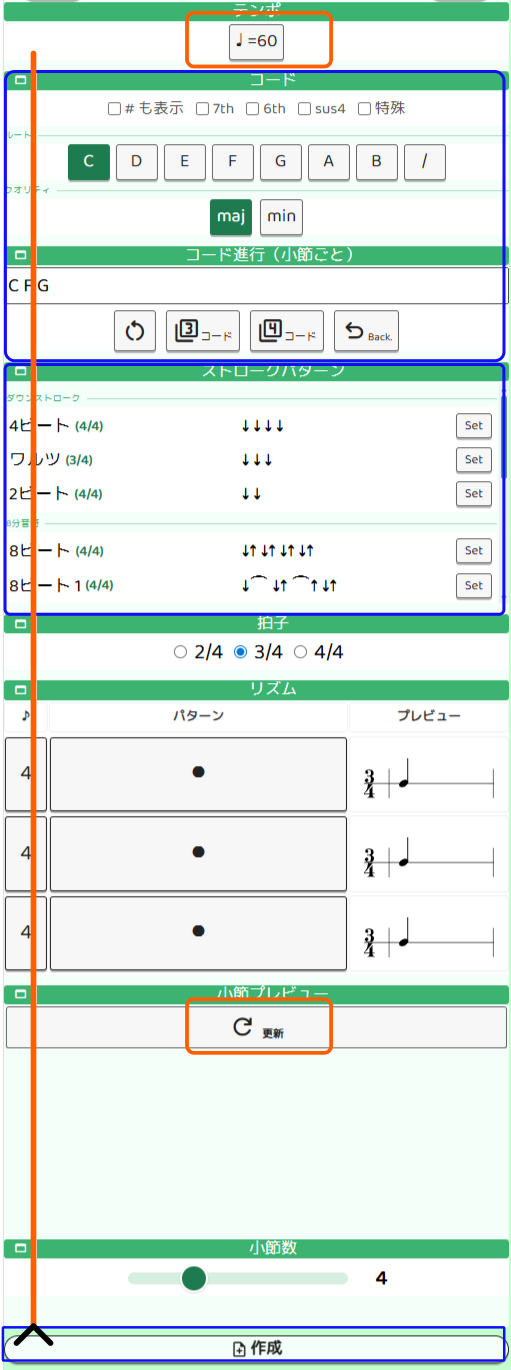
画面上部の 「♩ = BPM」ボタン をタップすると、テンポ設定画面(configBeat)に移動します。
- テンポ(BPM):最初は 80〜100 程度から始めると弾きやすいです。
- クリック拍数:4拍子なら「4」、3拍子なら「3」を選びましょう。
- カウントイン:演奏前に何拍カウントするかを設定します。
設定が終わったら Done を押してこの画面に戻ります。
コード進行を入力する
ルート(C〜B)とクオリティ(maj / min / 7 など)を選ぶと、コードがコード進行テキストに追記されます。
- 最初は「C」だけでも大丈夫です。
- 複数のコードを並べると1小節ごとに割り当てられます。例)
C G Am F - ランダムに3〜4コードを追加する 3 / 4 ボタン も活用してみましょう。
拍子・リズム・小節数を決める
- 拍子:2/4・3/4・4/4 から選びます。テンポ設定のクリック拍数と合わせましょう。
- ストロークパターン:プリセットから選ぶと拍子とリズムが自動で設定されます。
- 小節数:8小節から始めるとちょうどよいです。
楽譜を生成する
設定が整ったら画面下部の 「楽譜を生成する」ボタン を押します。楽譜編集画面(editScore���に移動して、作成したリズム譜が表示されます。
クリックに合わせてコードを弾く練習を始めましょう。
Set the Tempo
Tap the ♩ = BPM button at the top of the screen to go to the tempo settings (configBeat).
- Tempo (BPM): Starting around 80–100 BPM is comfortable for beginners.
- Click beats: Choose 4 for 4/4 time, or 3 for 3/4 time.
- Count-in: Set how many beats to count before playback starts.
When done, tap Done to return to this screen.
Enter a Chord Progression
Select a Root (C–B) and Quality (maj / min / 7, etc.) to add a chord to the progression text.
- Starting with just "C" is perfectly fine.
- Multiple chords are assigned one per measure. Example:
C G Am F - Use the 3 / 4 buttons to add random diatonic chords quickly.
Set Time Signature, Rhythm, and Measures
- Time signature: Choose 2/4, 3/4, or 4/4 to match your click beat setting.
- Stroke patterns: Pick a preset to auto-set the time signature and rhythm.
- Measures: 8 measures is a good starting point.
Generate the Score
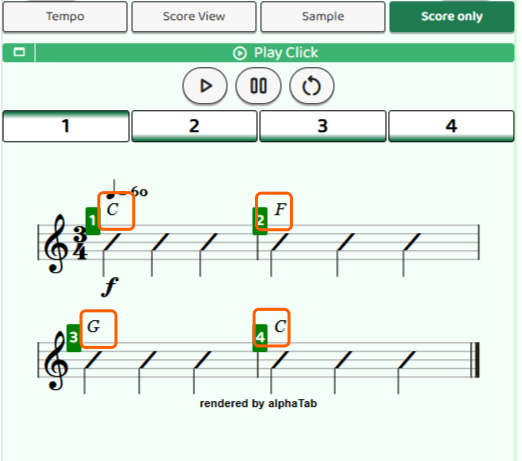
When everything is set, tap the Create Score button at the bottom. You'll move to the score editor (editScore) where your rhythm score is displayed.
Start practicing by playing the chords in time with the click.
Ajustar el tempo
Toca el botón ♩ = BPM en la parte superior para ir a los ajustes de tempo (configBeat).
- Tempo (BPM): Para empezar, un rango de 80–100 BPM es cómodo.
- Pulsos del click: Elige 4 para 4/4, o 3 para 3/4.
- Cuenta atrás: Cuántos tiempos contar antes de que empiece la reproducción.
Cuando termines, pulsa Done para volver a esta pantalla.
Introducir la progresión de acordes
Selecciona una Raíz (C–B) y una Calidad (maj / min / 7, etc.) para añadir un acorde al texto de progresión.
- Empezar solo con "C" está perfectamente bien.
- Varios acordes se asignan uno por compás. Ejemplo:
C G Am F - Usa los botones 3 / 4 para añadir acordes diatónicos aleatorios.
Ajustar compás, ritmo y número de compases
- Compás: Elige 2/4, 3/4 o 4/4 para que coincida con el pulso del click.
- Patrones de rasgueo: Elige un preset para configurar el compás y el ritmo automáticamente.
- Compases: 8 compases es un buen punto de partida.
Generar la partitura
Cuando todo esté listo, pulsa el botón Crear partitura en la parte inferior. Pasarás al editor de partitura (editScore) donde se mostrará tu partitura de ritmo.
Empieza a practicar tocando los acordes al ritmo del click.