Edit Your Score 3: Entering Tab Fret Numbers
Save Fret Numbers with Tab Input
When you add tab to a rhythm score, you can record which string and fret should be played. This makes it easier to revisit short melodies, arpeggio patterns, and chord shapes later.
The tab input area appears in the measure editor only when the performance screen is set to Tab or Rhythm + Tab display mode. First switch to a mode where tab is visible, then tap a measure number and open Edit. You can also double-tap or double-click a measure number to move to the same editor.
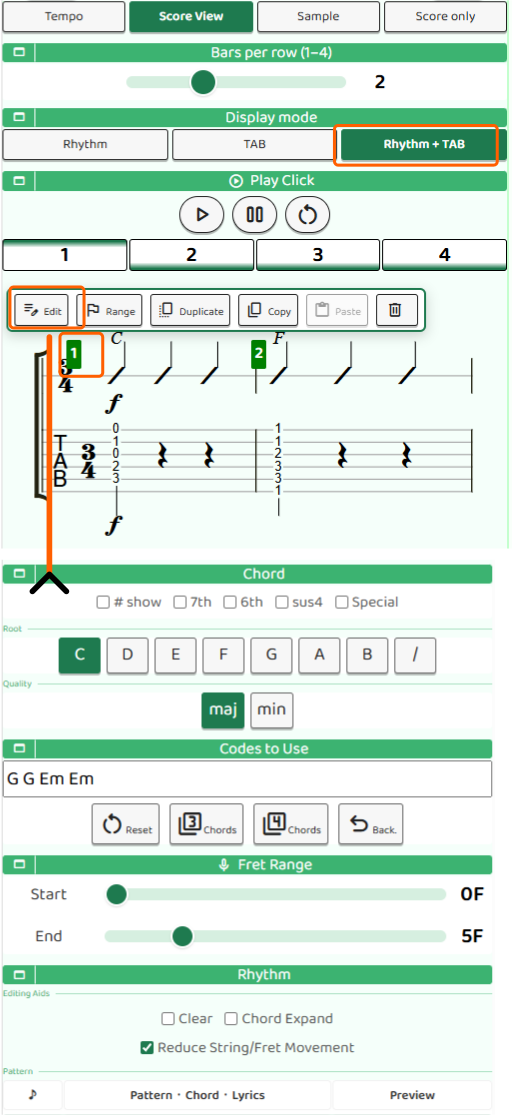
Enter Fret Numbers
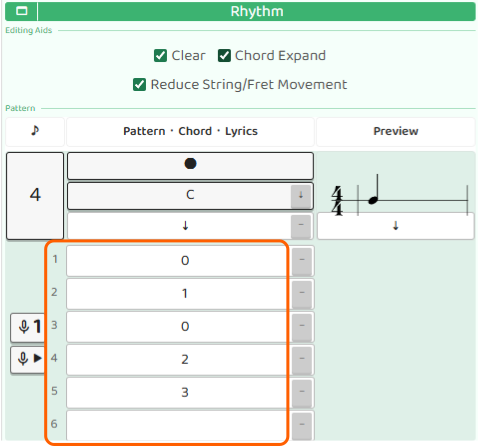
The tab input area shows fields for strings 1 through 6. For each note, you can enter fret numbers for all six strings. A quarter note gives you one field group per beat, an eighth note gives you two, and a sixteenth note gives you four.
Enter numbers from 0 to 30. A 0 means an open string, where you play the string without pressing a fret. Higher numbers mean higher notes on the same string.
The same pitch can sometimes be played on more than one string and fret. There is not always one correct answer, so choose the position that feels easiest to play.
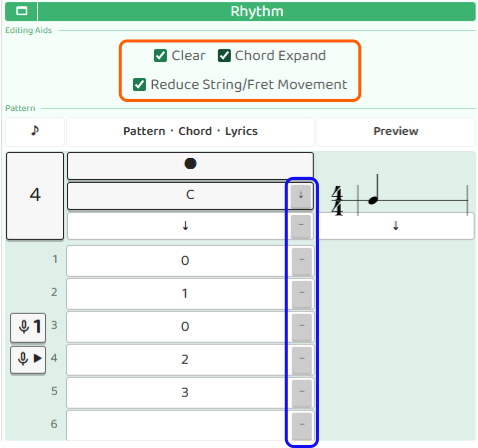
Use Editing Helpers
There are three editing helpers: Clear, Chord Expansion, and Reduce string/fret movement.
Turn on Clear to show a small “-” button beside the lyric and fret number fields. Press it to clear only that field. This is useful when you want to remove just one entry.
Turn on Chord Expansion to show a “↓” button beside the chord selector. Press it to fill strings 1 through 6 with the fret positions for the selected chord. Selecting a chord alone does not write tab numbers, so press the “↓” button when you want the chord shape to appear in the tab area.
Turn on Reduce string/fret movement to make microphone input prefer positions with less movement from the surrounding notes. On guitar, the same pitch can often be played in more than one place. The sound matters, but so does how easily your fingers can move.
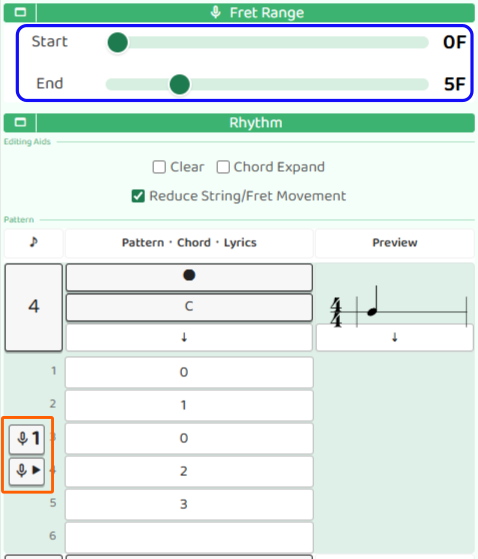
Capture Notes with the Microphone
Fret numbers can be entered by hand, but B.Click can also decide them from microphone input.
Use the microphone 1 button to record only the current beat. This is useful when you want to enter notes one at a time.
Use the microphone ▶ button to record continuously from that beat to the end of the measure. Tap it again to stop recording. Try this when you want to play a short melody and turn it into tab as you go.
During recording, the fret range slider narrows the range to detect. A smaller range gives B.Click fewer candidates, which can improve detection. After input, use the suggestions as a guide and also check the result by playing it on your guitar.
Check the Tab Preview
When you finish entering notes, check the Measure Preview at the bottom of the screen. Tap Update to preview only the measure you are editing as notation. Check how the tab looks, then save it with Done.
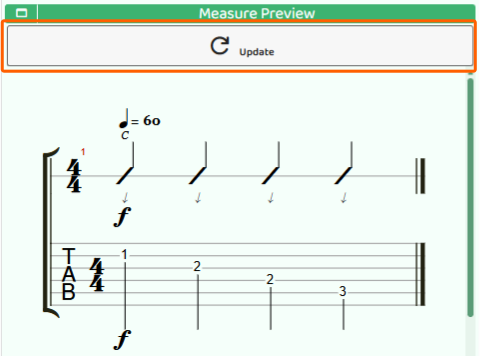
Once rhythm, chords, and tab are together, the score shows when to play, which chord is behind it, and which string and fret to use. Start by saving short melody ideas so you can come back to them later.
Note: “Tab” comes from “tablature.” Tablature is a way of writing music that shows where to play on the instrument, rather than showing pitch with notes on a staff. In guitar tab, the six lines represent the strings, and the numbers on those lines show the fret numbers to press.