Saving and Loading Your Score as a PDF
Keep Your Score for Next Time
Any score you create or edit will be lost when you close the app unless you save it. To use the same score in your next practice session, save it as a PDF.
Loading the PDF back into B.Click restores the chord progression and all other settings exactly as you left them. You can also print the PDF or jot notes on a paper copy to remind yourself of key points.
Saving Your Score as a PDF
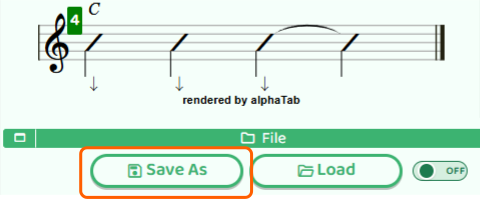
On the play screen, tap the Save button. A PDF preview appears — give it a name and save it to your device.
You can find the saved file in your device’s Files app or Downloads folder. Giving each file a descriptive name makes it easier to find later.
Loading a Saved Score
To pick up a score you saved before, open the play screen and tap the Load button. Select your saved PDF and the score is restored — chord progression and all.

Only PDFs saved by B.Click can be loaded. Files from other apps won’t work.
Combining Scores (Merge)
Turn on Merge mode before loading a score, and the loaded score gets appended to the end of your current score.
For example, you could create separate scores for a verse and a chorus, then combine them into one. Both scores must have the same time signature for the merge to work.

Sample Scores Are Also Available
B.Click comes with sample scores ready to use. Tap the Sample button on the play screen to load one. It’s also a good starting point — load a sample, edit it to your liking, then save it as your own score.