Edit Your Score 1: Copying and Deleting Measures
Tap a Measure Number
In the performance screen, tap (or click) a measure number to open the context menu for that measure.
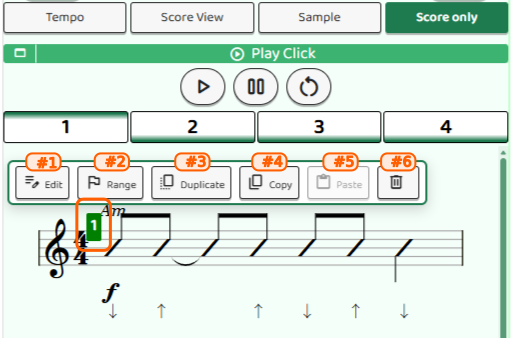
The menu shows six operations. Let’s look at each one.
Edit a Measure (Edit)
Tap Edit to open the individual editing screen for that measure’s chord and rhythm. Use this screen to change the chord progression or fine-tune the rhythm pattern.
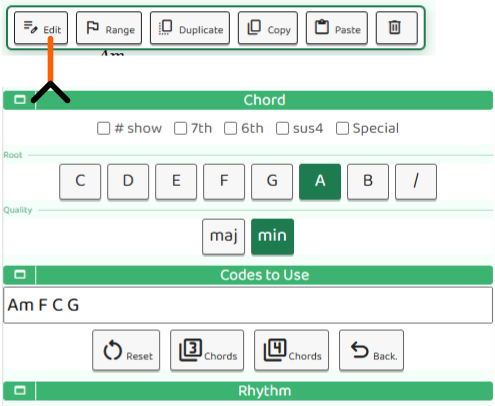
Detailed editing for each measure is covered in the next article.
Select a Range (Range)
Tap Range to mark that measure as the “start” of a selection, shown in orange.
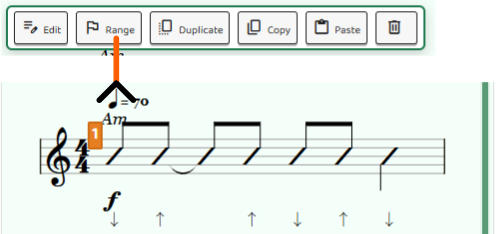
This works together with Duplicate, Copy, and Trash to operate on multiple measures at once. First tap Range on the starting measure, then open the context menu on the last measure and choose your operation.
Duplicate a Measure (Duplicate)
Tap Duplicate to add a copy of the selected measure immediately after it. This is handy when you want to quickly build up a repeating section.
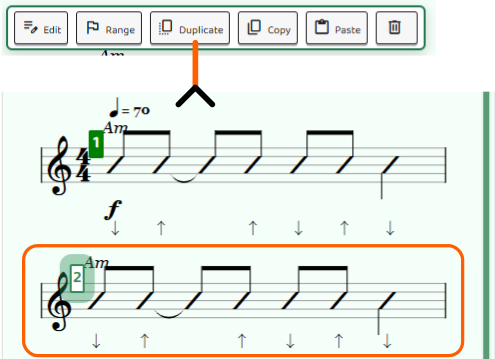
The maximum number of measures is 50. Duplication is not available once the limit is reached.
Copy and Paste (Copy & Paste)
Tap Copy to store the selected measure internally. Then tap Paste on another measure to overwrite it with the stored content starting from that position.
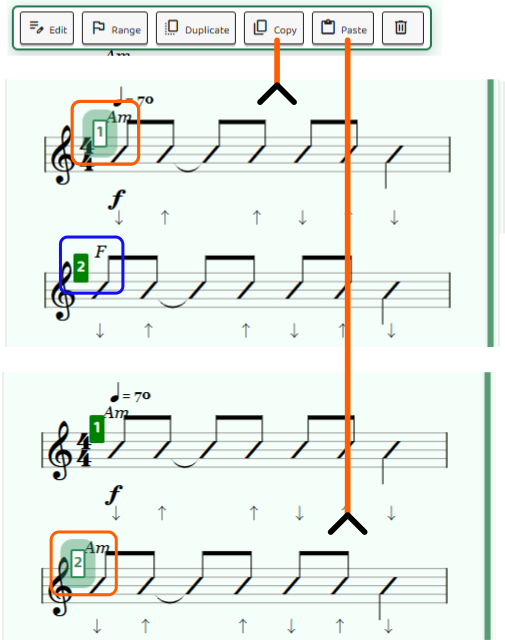
Use this when you want to reuse a chord progression from one part of the song in another.
Delete a Measure (Trash)
Tap Trash (the trash-can icon) to delete the selected measure.
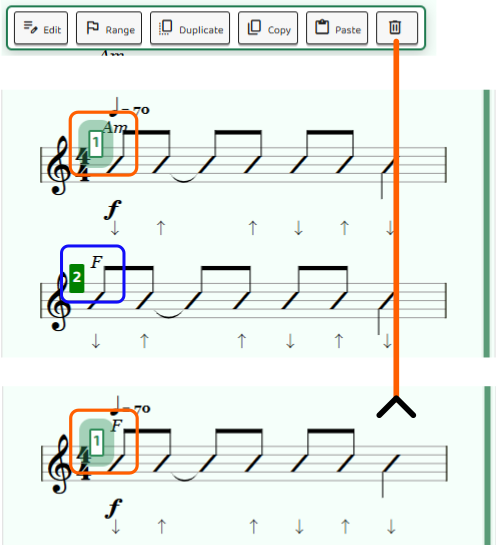
A score requires at least one measure, so deletion is not available when only one measure remains. You can also use Range to select multiple measures and delete them all at once with Trash.