Creating a Rhythm Score in One Go
Create Your Own Score
Once you have a chord progression in mind, turning it into a score makes practice much easier. In B.Click, you can auto-generate a rhythm score by simply setting the time signature, chord progression, and number of measures. No handwriting required — you’ll be ready to practice in seconds.
Set Up Your Score
Tap the Score button on the main screen to open the score settings.
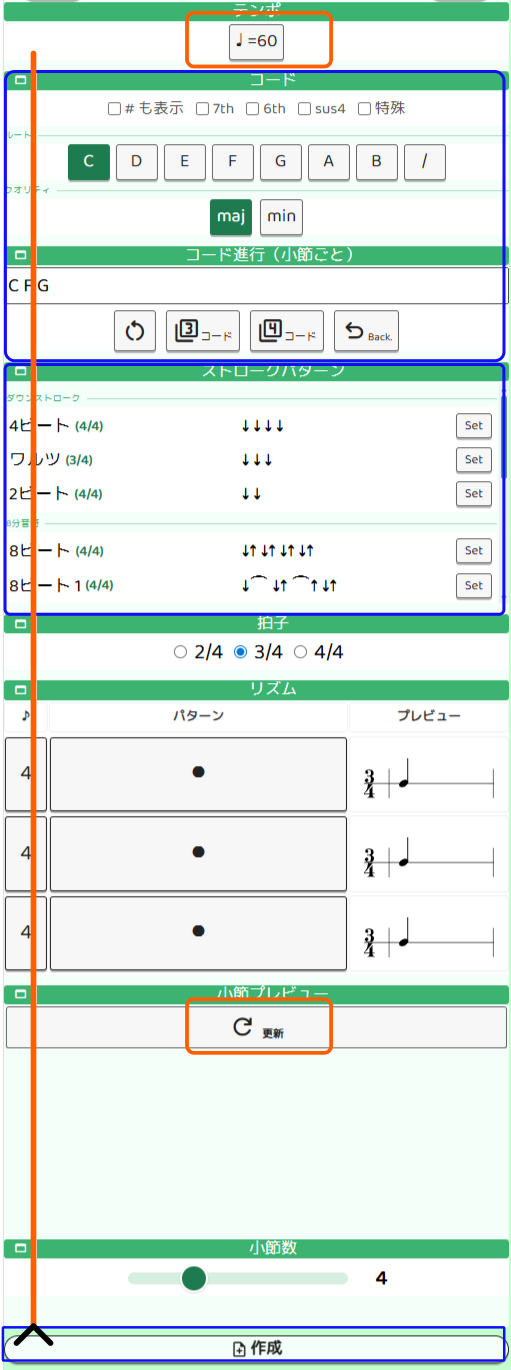
There are five things to configure:
| Setting | Options |
|---|---|
| Tempo | 30–240 BPM (change in the tempo settings screen) |
| Time signature | 2/4 · 3/4 · 4/4 |
| Chord progression | Select root and quality to add chords (up to 10) |
| Rhythm | 4-beat, 8-beat, etc. |
| Number of measures | 1–12 |
Tempo — tapping the tempo button at the top of the screen opens the tempo settings, where you can adjust the BPM, beat count, and count-in.
Time signature sets the basic feel of the rhythm. 4/4 is the most common — four beats per measure. 3/4 gives a waltz-like, three-beat feel, and 2/4 is often used for a march-style tempo.
Chord progression is built by selecting a root note and quality (m, 7, etc.) and adding chords one at a time — in the order you want to play them. If you enter fewer chords than measures, the progression loops back from the beginning.
If you just want to save your settings without creating a score, tap Done to return to the main screen. To generate the score right away, tap the Create button at the bottom of the screen.
Tap “Create” to Generate the Score
Tap the Create button at the bottom of the settings screen. B.Click will instantly generate a rhythm score based on your chord progression and measure count.
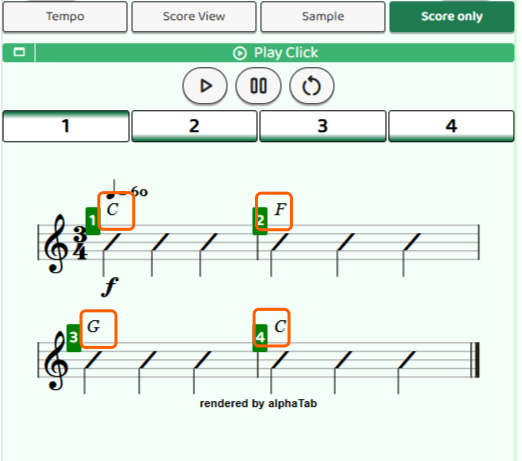
Each measure in the score shows the chord name. From here, tap the Play button to start the click and play along.
Change your settings and tap Create again whenever you want to start fresh. Try different progressions and see what sounds good to you.