 .Click
楽譜を編集しよう③:TABフレット入力 Edit Your Score ③: TAB Fret Input Editar la partitura ③: entrada de trastes TAB
TAB入力でフレット番号を残そう
リズム譜にTABを加えると、どの弦の何フレットを弾くかまで楽譜に残せます。コードだけでなく、短いメロディやアルペジオの動きもあとから見返しやすくなります。
TAB入力エリアは、演奏画面の表示モードがTAB譜またはリズム+TABのときだけ、小節編集画面に表示されます。先に演奏画面でTABが見える表示モードに切り替えてから、小節番号をタップしてEditを開いてください。小節番号をダブルタップ(ダブルクリック)しても同じ画面に進めます。
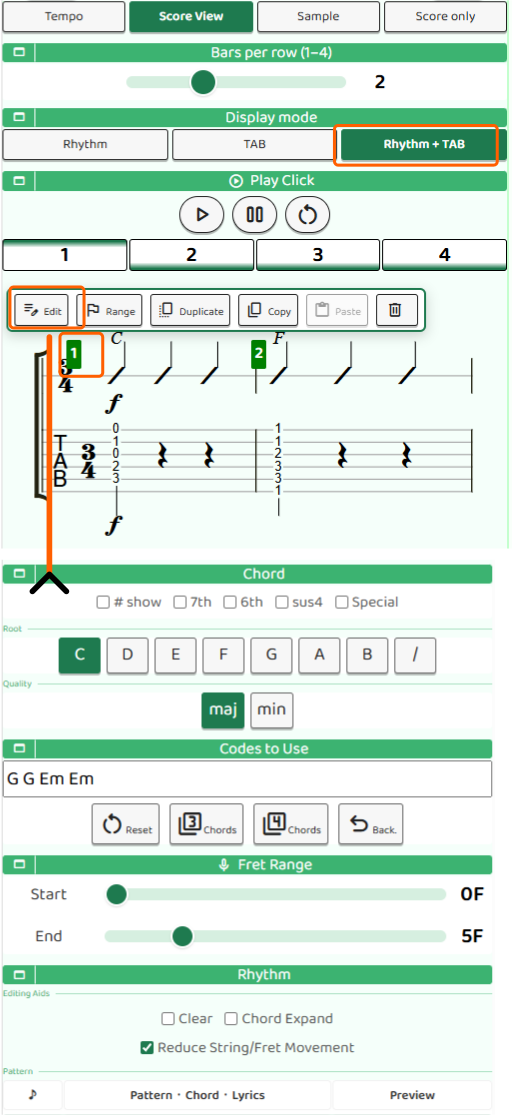
フレット番号を入力する
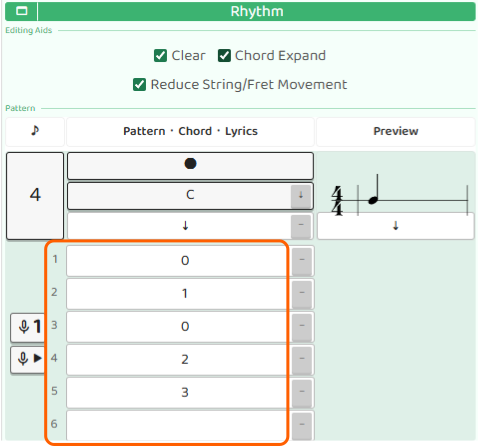
TAB入力エリアには、1〜6弦の入力欄が表示されます。1つの音に対して、6弦分のフレット番号を入力できる形です。4分音符なら1拍に1欄、8分音符なら1拍に2欄、16分音符なら1拍に4欄になります。
入力する数字は0〜30です。0は開放弦、つまり左手でフレットを押さえずに弾く音を表します。数字が大きくなるほど、同じ弦では高い音になります。
同じ音でも、弦とフレットの組み合わせが複数ある場合があります。必ず1つの正解があるわけではないので、弾きやすい位置を選んで大丈夫です。
編集補助を使う
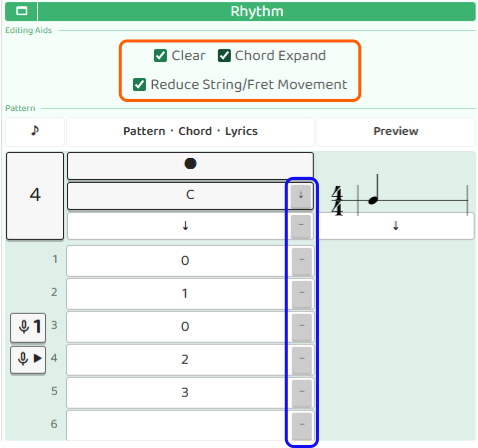
編集補助には、クリア、コード展開、弦・フレット移動を少なくの3つがあります。
クリアをONにすると、フレット番号欄の右側に小さな「−」ボタンが表示されます。押すと、その入力欄だけを空にできます。1つだけ消したいときに便利です。
コード展開をONにすると、コード選択の右側に「↓」ボタンが表示されます。このボタンを押すと、選んでいるコードを弾くためのフレット番号が1〜6弦へまとめて入力されます。コードを選択しただけではTABには反映されないので、TABに入れたいときは「↓」ボタンを押してください。
弦・フレット移動を少なくをONにすると、マイク入力でフレット番号を決めるときに、前後の音との移動量が少ない位置が選ばれやすくなります。ギターでは同じ音を別の弦で弾けることがあります。音だけでなく、指の移動が少なくて弾きやすいかどうかも大切です。
マイク入力で音を拾う
フレット番号は手入力だけでなく、マイク入力から決めることもできます。
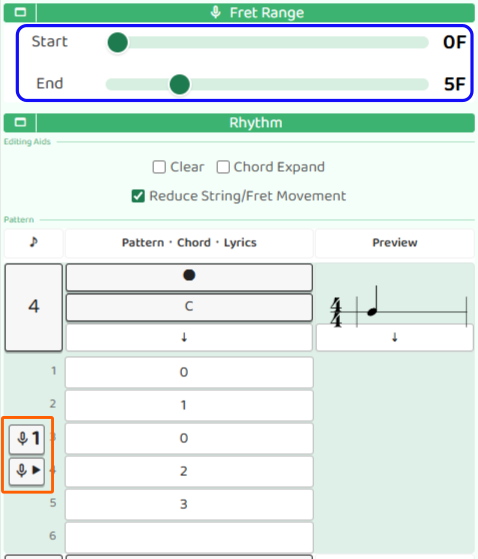
マイクの1ボタンを使うと、今の拍だけ録音します。短い音を1つずつ入れたいときに便利です。
マイクの▶ボタンを使うと、そのボタンの拍から小節の最後の音までを続けて録音します。もう一度押すと録音が止まります。メロディを続けて弾きながらTABにしていきたいときに試してみてください。
録音時は、フレット範囲スライダーで検出する範囲を絞れます。範囲が狭いほど候補が少なくなるので、検出しやすくなります。入力後は、画面の候補を参考にしながら、実際に弾いて確認してみましょう。
プレビューでTABを確認する
入力が終わったら、画面下部の小節プレビューで確認します。更新ボタンを押すと、編集中の1小節だけを楽譜としてプレビューできます。TABを含めた見た目を確認してから、Doneで保存しましょう。
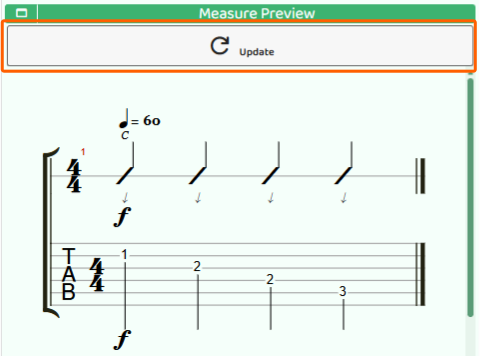
リズム、コード、TABがそろうと、「いつ・どのコードで・どの弦を弾くか」が1つの楽譜で見えるようになります。思いついたフレーズを忘れないように、短いメロディから記録してみてください。
Save Fret Numbers with Tab Input
When you add tab to a rhythm score, you can record which string and fret should be played. This makes it easier to revisit short melodies, arpeggio patterns, and chord shapes later.
The tab input area appears in the measure editor only when the performance screen is set to Tab or Rhythm + Tab display mode. First switch to a mode where tab is visible, then tap a measure number and open Edit. You can also double-tap or double-click a measure number to move to the same editor.
Enter Fret Numbers
The tab input area shows fields for strings 1 through 6. For each note, you can enter fret numbers for all six strings. A quarter note gives you one field group per beat, an eighth note gives you two, and a sixteenth note gives you four.
Enter numbers from 0 to 30. A 0 means an open string, where you play the string without pressing a fret. Higher numbers mean higher notes on the same string.
The same pitch can sometimes be played on more than one string and fret. There is not always one correct answer, so choose the position that feels easiest to play.
Use Editing Helpers
There are three editing helpers: Clear, Chord Expansion, and Reduce string/fret movement.
Turn on Clear to show a small "-" button beside the fret number fields. Press it to clear only that field. This is useful when you want to remove just one entry.
Turn on Chord Expansion to show a "↓" button beside the chord selector. Press it to fill strings 1 through 6 with the fret positions for the selected chord. Selecting a chord alone does not write tab numbers, so press the "↓" button when you want the chord shape to appear in the tab area.
Turn on Reduce string/fret movement to make microphone input prefer positions with less movement from the surrounding notes. On guitar, the same pitch can often be played in more than one place. The sound matters, but so does how easily your fingers can move.
Capture Notes with the Microphone
Fret numbers can be entered by hand, but B.Click can also decide them from microphone input.
Use the microphone 1 button to record only the current beat. This is useful when you want to enter notes one at a time.
Use the microphone ▶ button to record continuously from that beat to the end of the measure. Tap it again to stop recording. Try this when you want to play a short melody and turn it into tab as you go.
During recording, the fret range slider narrows the range to detect. A smaller range gives B.Click fewer candidates, which can improve detection. After input, use the suggestions as a guide and also check the result by playing it on your guitar.
Check the Tab Preview
When you finish entering notes, check the Measure Preview at the bottom of the screen. Tap Update to preview only the measure you are editing as notation. Check how the tab looks, then save it with Done.
Once rhythm, chords, and tab are together, the score shows when to play, which chord is behind it, and which string and fret to use. Start by saving short melody ideas so you can come back to them later.
Guarda números de traste con TAB
Al añadir TAB a una partitura rítmica, puedes guardar qué cuerda y qué traste se deben tocar. Así es más fácil revisar después melodías cortas, arpegios y posiciones de acordes.
El área de entrada TAB solo aparece en el editor de compás cuando la pantalla de interpretación está en modo TAB o Ritmo + TAB. Primero cambia a un modo donde se vea la tablatura, luego toca el número de compás y abre Edit. También puedes tocar dos veces o hacer doble clic en el número de compás para ir al mismo editor.
Introduce números de traste
El área TAB muestra campos para las cuerdas 1 a 6. Para cada nota puedes introducir números de traste para las seis cuerdas. Una negra muestra un grupo por pulso, una corchea muestra dos y una semicorchea muestra cuatro.
Introduce números de 0 a 30. El 0 significa cuerda al aire, es decir, tocar la cuerda sin pisar ningún traste. En una misma cuerda, los números más altos producen notas más agudas.
La misma nota a veces se puede tocar en más de una cuerda y traste. No siempre hay una única respuesta correcta, así que elige la posición que resulte más cómoda.
Usa las ayudas de edición
Hay tres ayudas de edición: Clear, Chord Expansion y Reducir movimiento de cuerda/traste.
Activa Clear para mostrar un pequeño botón "-" junto a los campos de número de traste. Al pulsarlo, solo se borra ese campo. Es útil cuando quieres quitar una sola entrada.
Activa Chord Expansion para mostrar un botón "↓" junto al selector de acordes. Al pulsarlo, las posiciones del acorde seleccionado se introducen juntas en las cuerdas 1 a 6. Seleccionar un acorde no escribe automáticamente los números en TAB, así que pulsa "↓" cuando quieras añadir esa forma de acorde a la tablatura.
Activa Reducir movimiento de cuerda/traste para que la entrada por micrófono prefiera posiciones con menos movimiento respecto a las notas cercanas. En la guitarra, una misma nota puede tocarse en varios lugares. Importa el sonido, pero también que los dedos se muevan con comodidad.
Captura notas con el micrófono
Los números de traste se pueden introducir a mano, pero B.Click también puede decidirlos a partir de la entrada del micrófono.
El botón de micrófono 1 graba solo el pulso actual. Es útil para introducir notas una por una.
El botón de micrófono ▶ graba de forma continua desde ese pulso hasta el final del compás. Tócalo de nuevo para detener la grabación. Pruébalo cuando quieras tocar una melodía corta y convertirla en TAB mientras avanzas.
Durante la grabación, el control rango de trastes limita la zona de detección. Un rango más estrecho deja menos candidatos y puede mejorar la precisión. Después de introducir las notas, usa las sugerencias como guía y comprueba el resultado tocándolo en la guitarra.
Revisa la vista previa con TAB
Cuando termines de introducir las notas, revisa la vista previa del compás en la parte inferior. Toca Update para previsualizar solo el compás que estás editando como notación. Revisa cómo se ve la tablatura y después guarda con Done.
Cuando ritmo, acordes y TAB están juntos, la partitura muestra cuándo tocar, qué acorde hay detrás y qué cuerda y traste usar. Empieza guardando ideas de melodía cortas para poder volver a ellas más adelante.