 .Click
楽譜を編集しよう②:リズムパターン Edit Score ②: Rhythm Patterns Editar ②: Patrones rítmicos
小節を開いて編集する
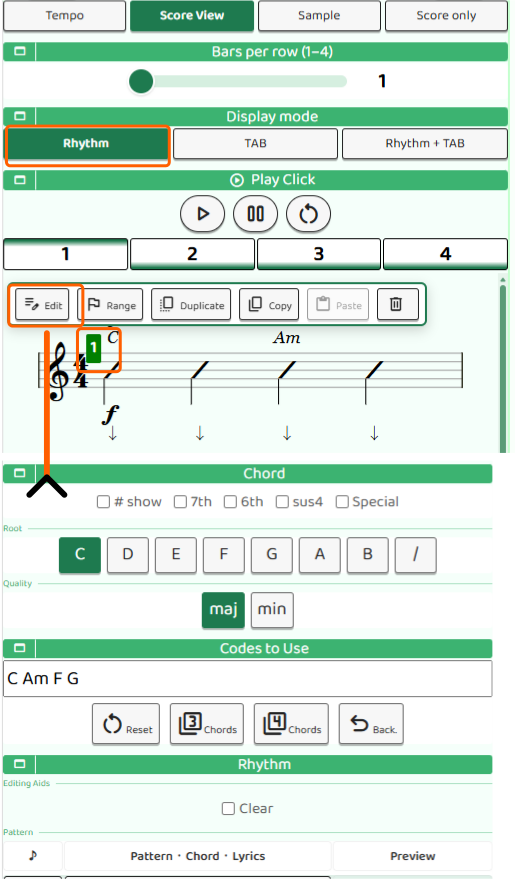
左のツール画面(editScore)が楽譜の全体表示です。小節をタップするとコンテキストメニューが開きます。メニューから 「編集」 を選ぶと、その小節の詳細編集画面(editMeasure)に移動します。
編集が終わったら Done ボタンで楽譜全体の画面(editScore)に戻ります。この行き来を繰り返して、すべての小節を仕上げましょう。
リズムパターンを変える
editMeasure 画面では、その小節のリズムパターンを自由に変更できます。
- 音符の分割:1拍を2つや4つに分割して細かいリズムを作れます。
- 休符:音を鳴らさない拍を入れると、よりリズミカルな表現ができます。
- タイ:隣り合う音符をつなげて、より長い音として演奏させることができます。
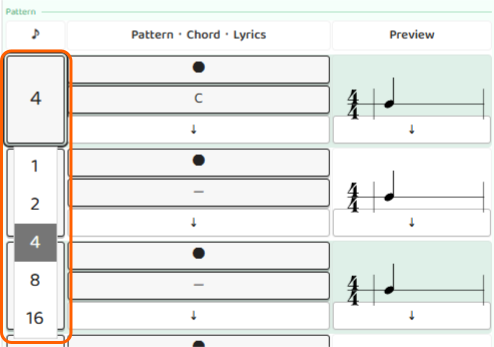
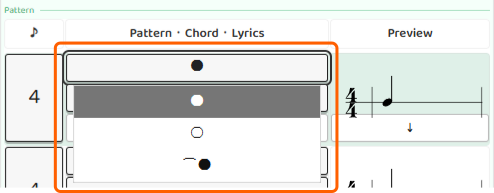
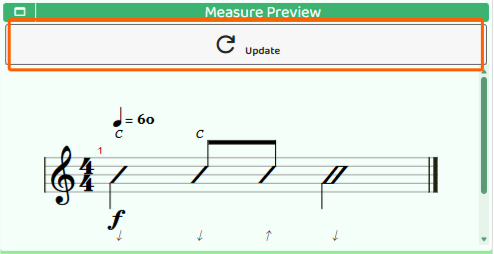
変更したリズムはリアルタイムでプレビュー再生できます。イメージしたリズムになったら Done で保存してください。
コードを変更する
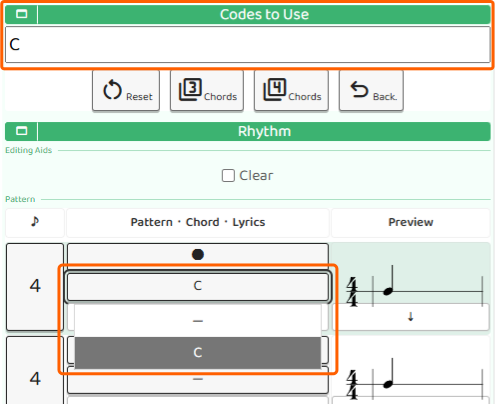
editMeasure 画面ではコードの変更もできます。
- 画面上部のコード選択エリアで、ルート音とコードタイプを選びます。
- スラッシュコード(分数コード)を使いたい場合は、スラッシュトグルをオンにします。
コード図(コードダイアグラム)を確認しながら入力したい場合は、コード図ボタンをタップすると別画面で確認できます。
TABフレット番号を入力する
単音メロディを入れたい小節では、TABタブに切り替えてフレット番号を入力できます。弦ごとにフレット数字を書き込む感覚で操作できます。
Open a Measure to Edit
The tool panel on the left (editScore) shows your full score. Tap a measure to open the context menu, then choose Edit to go to the detailed editing screen (editMeasure) for that measure.
When you're done editing, tap Done to return to the full score view (editScore). Repeat this back-and-forth to refine every measure.
Changing Rhythm Patterns
In the editMeasure screen, you can freely change the rhythm pattern for that measure.
- Note division: Split a beat into 2 or 4 parts to create finer rhythms.
- Rests: Add silent beats for a more rhythmic, punchy feel.
- Ties: Connect adjacent notes to play them as a single longer note.
You can preview the rhythm in real time as you edit. When it sounds the way you want, tap Done to save.
Changing Chords
You can also change chords in the editMeasure screen.
- Use the chord selection area at the top of the screen to choose the root note and chord type.
- To use a slash chord (split bass chord), turn on the slash toggle.
If you want to check the chord diagram while entering chords, tap the chord diagram button to see it in a separate screen.
Entering TAB Fret Numbers
For measures where you want to add a single-note melody, switch to the TAB tab and enter fret numbers. It works just like writing fret numbers on each string of a tab sheet.
Abrir un compás para editarlo
El panel de herramientas de la izquierda (editScore) muestra tu partitura completa. Toca un compás para abrir el menú contextual y elige Editar para ir a la pantalla de edición detallada (editMeasure) de ese compás.
Cuando termines de editar, pulsa Done para volver a la vista completa de la partitura (editScore). Repite esta ida y vuelta para perfeccionar cada compás.
Cambiar patrones rítmicos
En la pantalla editMeasure puedes cambiar libremente el patrón rítmico de ese compás.
- División de notas: Divide un tiempo en 2 o 4 partes para crear ritmos más detallados.
- Silencios: Añade tiempos silenciosos para un ritmo más dinámico.
- Ligaduras: Une notas adyacentes para reproducirlas como una sola nota más larga.
Puedes escuchar una vista previa del ritmo en tiempo real mientras editas. Cuando suene como quieres, pulsa Done para guardar.
Cambiar acordes
También puedes cambiar los acordes en la pantalla editMeasure.
- Usa el área de selección de acordes en la parte superior para elegir la nota raíz y el tipo de acorde.
- Para usar un acorde de bajo dividido (slash chord), activa el interruptor de barra.
Si quieres consultar el diagrama de acordes mientras los introduces, toca el botón de diagrama de acordes para verlo en una pantalla aparte.
Introducir números de traste TAB
En los compases donde quieras añadir una melodía de nota única, cambia a la pestaña TAB e introduce los números de traste. Funciona igual que escribir los números de traste en cada cuerda de una tablatura.